
Logging in to Crown Green casino gives you access to the full game lobby, live dealer tables, your bonus balance, the cashier and the promotions section — on both desktop and mobile. The login process uses email and password, the same credentials entered during registration on crowngreencasinocan.com. The site loads in English Canada by default and displays balances in CAD.
This guide covers the sign-in process step by step, what to do if you have forgotten your password, how to access your Crown Green casino account on a mobile browser, and how to resolve the most common login issues. We accessed the platform directly in 2026 across desktop and mobile to verify each step below.
| Login detail | Information |
|---|---|
| Login URL | crowngreencasinocan.com |
| Login method | Email address + password |
| Two-factor authentication | Check account security settings on-site |
| Password reset | Available via "Forgot Password" on login screen |
| Device support | Desktop, iOS and Android — browser-based |
| Mobile browsers tested | Safari (iPhone 14), Chrome (Samsung S23) |
| Session security | SSL encryption — same on all devices |
| When verification appears | Before first withdrawal (KYC) |
| Currency | CAD (Canadian Dollar) |
| Support | [email protected] |
How to log in to CrownGreen Casino
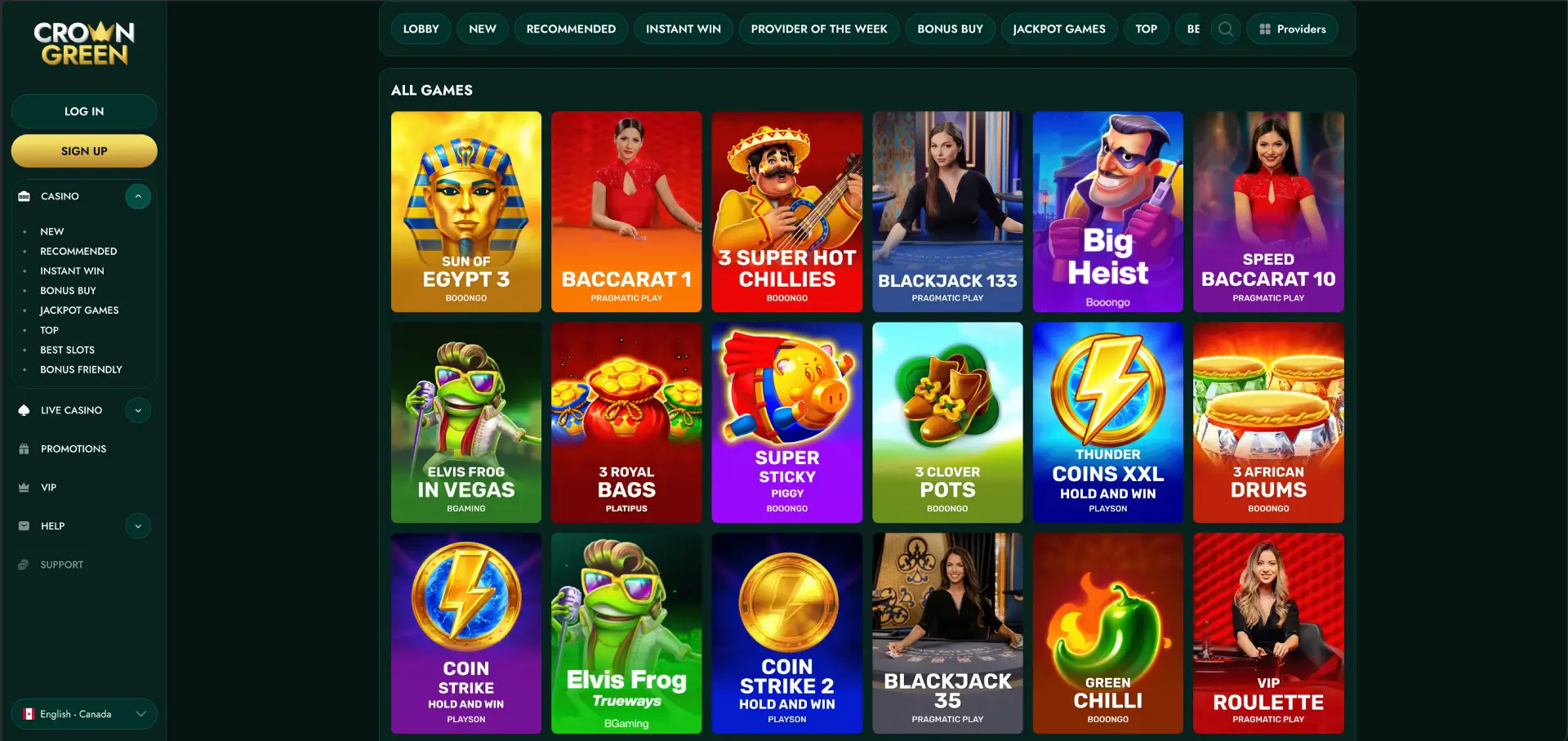
The login button is visible in the top section of the sidebar on the CrownGreen casino homepage. You do not need to navigate away from the main page to find it.
Step-by-step login
- Open crowngreencasinocan.com in your browser.
- Click the LOG IN button in the upper-left sidebar.
- Enter the email address you used when registering your account.
- Type your password — the field is case-sensitive.
- Complete any two-factor authentication step if you have it enabled.
- Click the confirm button and wait for the lobby to load without refreshing the page.
During our session on a MacBook Air using Chrome, the login modal opened instantly and the lobby loaded within two seconds of signing in. If the page does not respond after clicking login, see the troubleshooting section below before attempting again.
Create an account
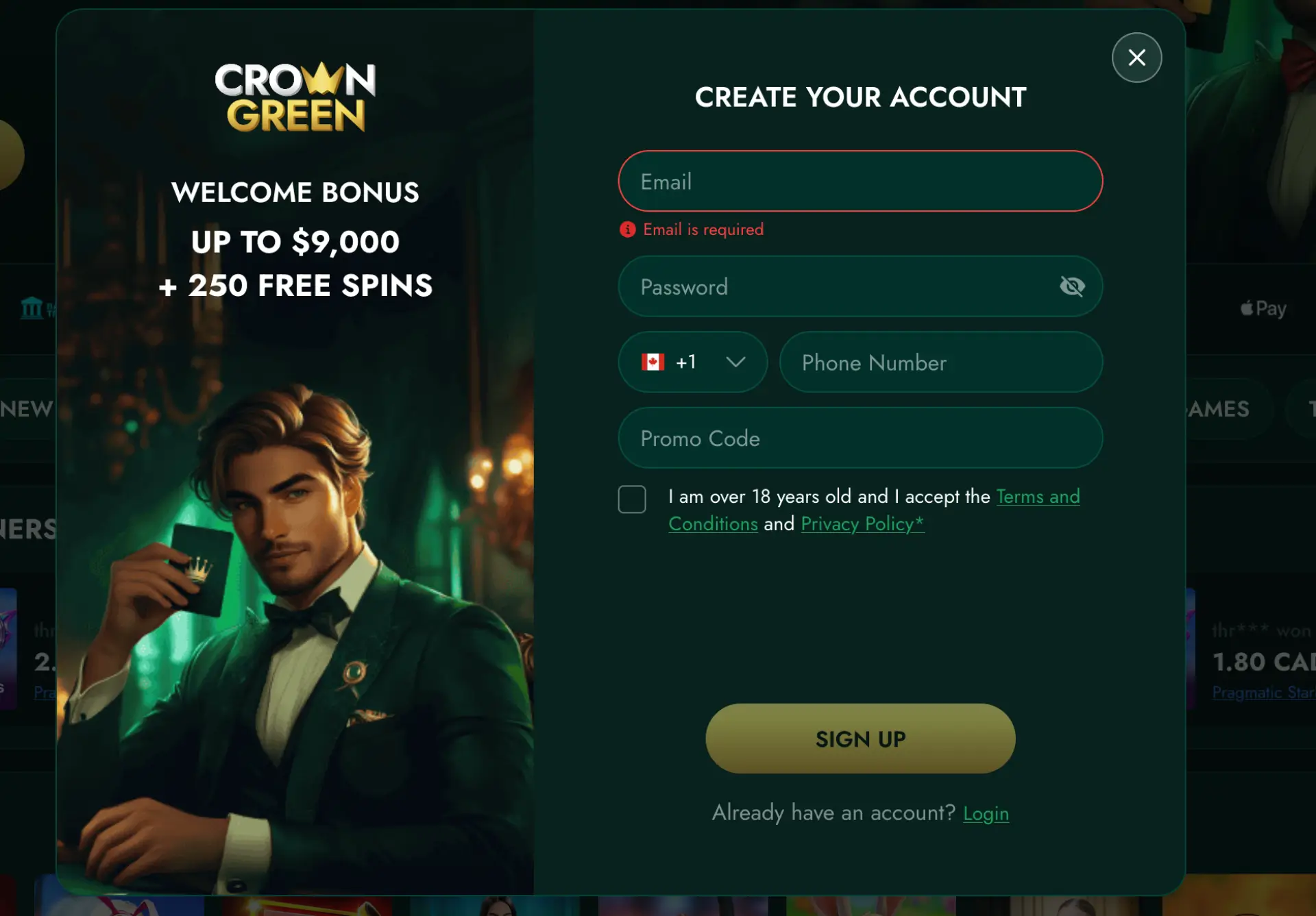
If you do not yet have a CrownGreen casino account, registration takes under two minutes. The sign-up form is accessible directly from the homepage via the SIGN UP button in the sidebar.
Quick registration flow
- Click SIGN UP on crowngreencasinocan.com.
- Enter your email address.
- Set a password.
- Enter your phone number — the country code defaults to Canada (+1).
- Enter a promo code if you have one (optional field).
- Check the box confirming you are over 18 and accept the Terms and Conditions and Privacy Policy.
- Click SIGN UP to complete registration.
Your account is active immediately after registration. The welcome bonus of up to CAD $9,000 + 250 free spins is connected to your first three deposits — you do not need to claim it at the registration stage.
Secure login practices
- Use a strong, unique password not shared with any other platform.
- Log in only via the official domain: crowngreencasinocan.com.
- Avoid saving your password in shared or public devices.
- Always log out fully when using a browser you do not own.
- Do not share your login credentials with anyone — the casino operates a single-account policy.
- Third-party deposits are not permitted — only payment methods registered to your own account.
Password recovery
If you cannot remember your password, use the password reset option on the login screen. The reset link is sent to the registered email address.
Reset steps
- Open crowngreencasinocan.com and click LOG IN.
- Select the "Forgot Password" or equivalent link on the login form.
- Enter the email address associated with your CrownGreen casino account.
- Check your inbox — the reset email typically arrives within a few minutes. Check your spam folder if it does not appear.
- Follow the link in the email to set a new password.
- Return to crowngreencasinocan.com and log in using the new credentials.
Mobile login
CrownGreen casino does not have a downloadable app. Access on mobile is through the browser. During our testing on a Samsung S23 (Chrome) and iPhone 14 (Safari), the login form loaded and functioned identically to the desktop version. The sidebar layout adapts to the mobile screen and the LOG IN button remains in the same position.
Tips for mobile login
- Use your device's password manager to autofill credentials — the form accepts autofill without issues.
- Add crowngreencasinocan.com to your home screen for faster access — on iPhone, use Safari's Share > Add to Home Screen.
- If the login form does not respond on mobile, try refreshing the page or switching from Wi-Fi to mobile data.
- Ensure your browser is up to date — Safari and Chrome both performed reliably during our testing.
Troubleshooting common login errors
Incorrect credentials
If the login form returns an error after submission, double-check the email address and confirm caps lock is off. Passwords are case-sensitive. If you are certain the credentials are correct but login fails, proceed to the password reset flow described above.
Browser or cache issues
If the login page loads but the form does not submit or the session drops immediately after signing in:
- Clear your browser's cache and cookies, then reload crowngreencasinocan.com.
- Disable browser extensions that block scripts or third-party cookies.
- Try a different browser — Chrome and Safari both worked reliably in our testing.
- Disable VPN if you are using one — some VPN exit nodes can interfere with session handling.
Two-factor authentication issues
If your two-factor code is rejected, confirm the time on your authentication device is synchronised correctly. Authentication apps rely on device clock accuracy. If the issue persists, contact [email protected] to request assistance with 2FA settings.
Account blocked or restricted
If you receive a message indicating your account has been suspended or restricted, do not attempt repeated login. Contact [email protected] directly with your registered email address for guidance. Common causes include incomplete KYC, suspected third-party payment activity, or a self-exclusion request having been processed.
What you access after login
- Casino lobby: Full access to all game categories — New, Recommended, Instant Win, Bonus Buy, Jackpot Games, Top, Best Slots, Bonus Friendly.
- Live Casino: All live dealer tables — Roulette, Blackjack, Baccarat, Poker, Table Games.
- Promotions: Your active bonuses, free spin allocations and cashback status.
- Cashier: Deposit and withdrawal section with all available CAD payment methods.
- VIP Club: Status, points and access to VIP-exclusive promotions including Tuesday Power and Midweek Rush.
- Account settings: Personal details, password management and security options.
- Support: Access to help resources and contact options.
Account verification (KYC)
CrownGreen casino requires identity verification before processing your first withdrawal. KYC is triggered at the withdrawal stage — not during registration. Document review takes up to 48 hours, excluding weekends. Prepare the following before requesting a withdrawal:
- Photo ID: Government-issued document — passport or driver's licence.
- Bank card image: Both sides of the card used for deposit. First 6 and last 4 digits must be clearly visible; the middle digits and CVV should be obscured.
- Proof of address: A recent utility bill or bank statement matching your registered address.
- Payment method ownership: Proof of ownership for any e-wallet or other payment method used.
If verification is not completed or documents are not accepted, CrownGreen casino reserves the right to close the account and cancel winnings. Submit documents clearly and promptly after making your first withdrawal request.
FAQ
Where do I log in to CrownGreen Casino?
The login button is located in the upper-left sidebar at crowngreencasinocan.com. Click LOG IN, enter your registered email and password, and click confirm to access your account.
What do I do if I forget my CrownGreen Casino password?
Use the password reset option on the login screen. Enter your registered email address and follow the link sent to your inbox. Check your spam folder if the email does not arrive within a few minutes.
Can I log in to CrownGreen Casino on my phone?
Yes. CrownGreen casino is fully accessible via mobile browser. Open crowngreencasinocan.com in Safari (iPhone) or Chrome (Android) — no app download is required. The login form functions identically to the desktop version.
Why is my CrownGreen Casino login not working?
Check that your email and password are correct, with caps lock off. If the form still fails, clear your browser cache, disable VPN if active, and try a different browser. For account restrictions, contact [email protected].
When does CrownGreen Casino ask for identity documents?
KYC verification is triggered before your first withdrawal. You will need to provide photo ID, a bank card image (first 6 and last 4 digits visible), proof of address and payment method ownership. Document review takes up to 48 hours, excluding weekends.
Is my CrownGreen Casino login secure?
Yes. The platform uses SSL encryption across all pages, including the login form and cashier. Use a strong unique password, only log in via the official crowngreencasinocan.com domain, and log out fully on any shared device.
Can I have more than one CrownGreen Casino account?
No. CrownGreen casino operates a one-account-per-player policy. Multiple accounts from the same player may result in account suspension and forfeiture of winnings. Use the password reset function if you cannot access your existing account.